



19 Feb Securing File Storage and Transfers
File storage and transferring hold a very dear place in most people’s lives. However, the safety of files is really tough to maintain. In this guide, we are going to help you protect your files. We will explore ways to store and send files securely.
What is secure file storage?
Secure file storage protects your files. It prevents others from accessing your files or altering them in any way. Good storage grants protection to your files using locks. You alone can unlock such files. Files can be stored securely in various ways, as listed below:
- Cloud
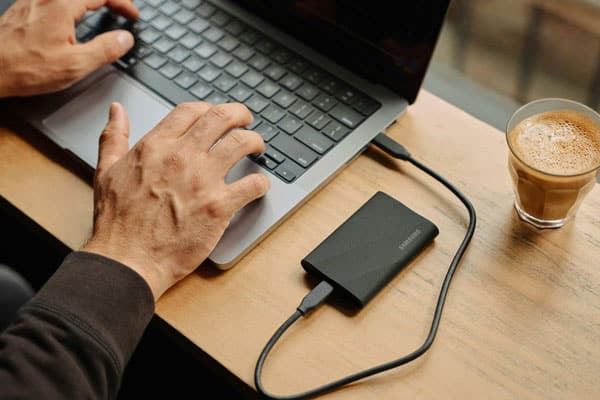
- Hard drives that are external
- Encrypted USB drives
Cloud storage saves files on the internet. External drives save files on a device you can hold. Encrypted drives use special codes to lock files.
Why is secure file storage important?
Secure storage keeps your information private. It stops thieves from stealing your data. It also helps you follow laws about data protection. Unsecured files can lead to huge troubles, including but not limited to the following:
- Identity theft
- Financial loss
- Privacy breaches
These risks give a reason why secure storage is important. You need to protect your personal and work files.
How Can I Make My File Storage Safer?
You can do so many things to make your storage safer, such as:
- Using strong passwords
- Enabling two-factor authentication
- Encrypting your files
- Keeping your software up to date frequently
Strong passwords are hard to guess. Two-factor authentication adds an extra step to log in. Encryption scrambles your files so others can’t read them. Updates fix security problems in your software.
Best practices for passwords Good passwords are important. Here are some tips:
- Use long passwords
- Mix letters, numbers, and symbols
- Don’t use personal info in passwords
- Use different passwords for each account
These tips make your passwords stronger. Stronger passwords keep your files safer.
What is secure file transfer?
Secure file transfer is a way of sending files safely between individuals or devices. It prevents unauthorised access to files and prohibits modification of files while in transit. The better methods of transfer protect the files with encryption.
Common secure transfer methods There are several ways to securely transfer files. They include:
- Secure FTP (SFTP)
- Virtual Private Networks (VPNs)
- Encrypted email attachments
- Secure file-sharing services
Each of the above methods provides additional security when you transfer your files. They ensure your data is secured during transfer.
How to Transfer Files Safely?
Transfer of files safely can be done by following the steps outlined below:
- Select a secure method of transfer
- Encrypt the file before you send it
- Give strong passwords for file access
- Authenticate the recipient
- Send the access details separately
These steps will keep your files safer while in transit. This way, they can only be accessed by those whom they are intended for.
How to email attachments safely Attaching to an email poses a risk. Here’s how to make it safe:
- Encrypt important attachments
- Use a secure email service
- Avoid writing sensitive information in the body of an email
- Double-check the recipient’s email address
These will help protect your email attachments from being viewed by others.
Here are some of the common file storage and transfer mistakes:
- Poor password creation
- Forgetting to encrypt the files
- Sending sensitive information over public Wi-Fi
- Not updating the security software
- Giving out access information with the files
These can expose your files to unnecessary risks. Keeping off them means you are keeping your data safe.
How to avoid these mistakes You will avoid these errors by:
- Setting up a password manager
- Setting up automatic encryption
- Using VPN on public Wi-Fi
- Allowing auto-updates
- Sending access info separately from the files
These steps keep you off the common security mistakes. They make the storage and transfer of your files safer. It ensures that your data is protected from thieves and snoopers. Use strong passwords, encryption, and safe methods of transfer. Need help with secure file storage? Feel free to reach out today and let us walk you through setting up safe systems for your files.
FAQs
-
Is “File Versioning” part ofsecure storage?
Yes, though people often forget about it. Secure storage isn’t just about keeping hackers out; it is also about protecting your files from accidental changes or “Ransomware” that locks your data.
- Point-in-Time Recovery: Versioning allows you to go back to an older copy of a file if the current one is deleted or ruined by a virus.
- Accident Protection: If a staff member accidentally deletes a whole page of data in a shared spreadsheet, you can restore the version from yesterday with one click.
- Audit Trail: It helps you see who made changes and when, which is very important for business security.
-
What should I do if I accidentally send asecure link to the wrong person?
If you sent a physical file as an email attachment, you cannot get it back. However, if you sent a secure cloud link (like from OneDrive or Google Drive), you can fix the mistake immediately:
- Revoke Access: Go into your “Shared” settings and remove the permissions for that link. The person will see an “Access Denied” page even if they still have the email.
- Kill the Link: You can delete the link itself, which makes it stop working for everyone.
- Set Expiry Dates: To prevent this from being a problem in the future, always set your shared links to “expire” after 7 days so they don’t sit active on the internet forever.
-
Does my “Scanner” or “Printer” pose a risk to file storage?
Many modern office printers and scanners have their own internal hard drives that save a copy of every document you scan. If you scan sensitive tax files or medical records, those images might stay on the printer’s memory. When you lease or sell your old printer, you must ensure the internal drive is wiped. You should also make sure your scanner sends files directly to a secure network folder rather than an unprotected “Public” folder that everyone in the office can see.
-
How does “Zero-Knowledge” storage work for extra privacy?
Standard cloud storage companies can technically see your files if they are forced to by a government or if their own staff are dishonest. “Zero-Knowledge” storage is a higher level of security where:
- The Key stays with you: Only you have the password to unlock the files. Even the company hosting the data cannot see what is inside.
- Enhanced Privacy: This is popular for law firms or medical clinics that handle extremely sensitive information.
- The Downside: If you lose your “Master Key,” the company cannot reset your password, and your files will be lost forever.
-
Should I use “AirDrop” or “Bluetooth” for business file transfers?
While convenient, these “near-field” transfer methods can be risky in public spaces.
- Avoid in Public: Hackers in busy places like airports can use “Bluebugging” to try and connect to your device while your Bluetooth is searching for a signal.
- Identity Risks: If your AirDrop is set to “Everyone,” strangers can send you malicious files or see your device name.
- Work Policy: It is best to stick to your company’s official secure sharing apps (like Microsoft Teams or Slack) to ensure every transfer is encrypted and recorded.
Robert Brown
19/02/2025
Related Articles:
Secure Data Backup
How Password Managers Protect Your Accounts